



Explain that the children will create a mind map to help them remember what they learnt about the similarities and differences between block coding and Python in the previous lesson. Hand out whiteboards and pens (one each) and display the Presentation: Mind map. Read the slide aloud and allow time for the children to complete the activity.
Learning objective
- To follow Python’s syntax rules so the computer understands my instructions.
Success criteria
- I can identify what Python needs to run correctly.
- I can spot and fix simple typing or spacing errors.
- I can explain why following Python’s rules matters.
National curriculum
Computing
Pupils should be taught to:
- Design, write and debug programs that accomplish specific goals, including controlling or simulating physical systems; solve problems by decomposing them into smaller parts.
- Use logical reasoning to explain how some simple algorithms work and to detect and correct errors in algorithms and programs.
Cross-curricular links
English
Spoken language
Pupils should be taught to:
- Ask relevant questions to extend their understanding and knowledge.
- Give well-structured descriptions, explanations and narratives for different purposes, including for expressing feelings.
- Use spoken language to develop understanding through speculating, hypothesising, imagining and exploring ideas.
Writing – composition
Pupils should be taught to:
- Proof-read for spelling and punctuation errors.
Before the lesson
In collaboration with The Micro:bit Educational Foundation.
Watch
Watch
Watch
Watch
Watch
Watch
Check all images, videos, links and presentation slides are suitable for your class.
- Presentation: Mind map.
- Presentation: Punctuation matters!
- Presentation: Syntax showdown.
- Whiteboards and pens (one each).
- A large space, such as a hall or playground (see Attention grabber).
- Devices (one between two).
- The Resource: Knowledge organiser: Computing – Exploring Python (support – see Adaptive teaching).
- Link: micro:bit Python Editor – this is an external website and we do not have control over its content – please check before showing it to the children.
Prepare this lesson in presentation mode
Choose what to show your class.
Download: Syntax project .hex file (teacher only).

Download: Code one .hex file (saved in the shared class drive).
Download: Code two .hex file (saved in the shared class drive).
Download: Code three .hex file (saved in the shared class drive).
Print in advance of the lesson.
Resource: Programmer commands (one teacher copy).
Activity: Syntax error log (one each).
Answer sheet: Syntax error log (one teacher copy).
Teacher guidance: Exploring Python: Lesson 2 (one teacher copy).
Subject knowledge
Misconceptions
The children may think that:
- ‘Python involves harder thinking than block coding’ — both use the same logic and only the format changes.
- ‘Code that looks different must behave differently’ — different formats can still follow the same sequence, repetition and timing.
- ‘Block coding is not real programming’ — block code and Python use the same core principles and can produce the same outcomes.
Lesson organisation
- Ask the children to predict syntax errors on the log sheet before opening the editor so the red markers do not reveal the answers. They cannot be turned off.
- Use the Answer sheet: Syntax error log to support quick checking while circulating and to see a completed example.
- Devices are best shared one between two so both pupils can contribute to identifying and fixing the syntax errors.
Downloading and opening a .hex file
All projects needed for this lesson need to be downloaded from the Have ready section.
- All .hex files will download as a zipped folder.
- The file will need to be extracted before it can be opened in the micro:bit Python Editor.
This process can be seen in this video:
- Teacher video: Downloading and opening .hex files.
Lesson plan
1: Recap and recall
Presentation: Mind map
Take feedback, highlighting key ideas and addressing any misconceptions. They may recall:
- Both block code and Python give instructions for the computer to follow.
- MakeCode and Python can control the micro:bit to show text or patterns.
- Block code uses visual blocks, while Python uses typed commands.
- Loops in MakeCode (repeat) match ‘for i in range()’ in Python.
- Both use pauses or timing to control when things happen.
- Python needs correct spelling, symbols and indentation to work properly.
2: Attention grabber
Take the children into a large space such as the hall or the playground. Explain that they will take part in an activity where they are robots and the teacher is the programmer. The programmer will give commands and the children must follow them exactly as spoken.
Read the three clear instruction sequences from the Resource: Programmer commands. Give slow, clear commands and end each sequence by saying, “End of program,” so the children know when to stop.
Repeat the activity using the three unclear instruction sequences to model broken or vague instructions.
Ask the children:
- Why did it work the first time but not the second time? (The first set of instructions were clear and in order but the second ones were muddled and hard to follow.)
- What was missing or confusing in the second sequence? (Some commands were not clear or were said in the wrong order so the robot did not know what to do.)
- How did you know when to stop the first time? (The programmer said, “End of program,” so the robot knew it was finished.)
- How is this like a real computer? (A computer needs clear, exact instructions and an ending to know when to stop running.)
Take feedback and explain that Python works in the same way as a robot. It needs clear, precise instructions to understand what to do.
Explain that syntax is the name for the set of rules a computer uses to read code.
Display slide 1 of the Presentation: Punctuation matters! Read the sentences aloud.
Presentation: Punctuation matters!
Discuss how small changes in punctuation can completely change the meaning. Explain that Python syntax works in the same way. Python needs the correct symbols, spacing and structure so the computer can understand the instructions. A missing colon or incorrect indentation is an example of incorrect syntax. When the syntax is wrong, the program stops because the computer cannot guess what was meant.
3: Main event
Play the Pupil video: What is syntax?
Pupil video: What is syntax?
Recap the key points and ask the children:
- What does the word syntax mean when talking about Python? (The rules that tell Python how to read and understand code.)
- Why can a small change, like a missing symbol or extra space, stop a program from working? (Computers follow code exactly and do not guess what we mean.)
- How does the Python editor show us that there is a syntax problem in the code? (It highlights the problem with red squiggly lines and shows an error message.)
- What steps do programmers usually take after they spot a syntax error? (They fix the mistake and run the program again to check it works.)
Go the link: micro:bit Python Editor. Model how to open the Download: Syntax project. hex file. Show the Python script on the screen and explain that it is a simple program written using Python’s rules.
Run the program in the simulator and ask the children to observe what happens. Discuss how the program runs and what each part of the code appears to do (see Teacher guidance: Exploring Python: Lesson 2). Encourage them to link what they see in the simulator to the lines of code, looking for familiar words such as for, display or sleep.
Deliberately break the code by removing a colon, adding an extra space or misspelling a word. Ask the children:
- Why did the error appear? (The syntax was wrong; something was typed incorrectly; something was missing.)
- How can we fix it? (The syntax needs correcting; spelling, punctuation and spaces must follow Python’s rules.)
Point out the red error icon and the red underline in the editor. Compare this to spelling errors marked in word-processing software. Explain that sometimes the program may still run but behave unexpectedly if the syntax is incorrect.
Pair the children and hand out the Activity: Syntax error log (one each). Explain that they will fix three broken snippets of code in the Python editor. Each snippet contains a simple syntax error. Point out that the children must identify the errors on their sheet before opening the Python files because the red markers would otherwise reveal the answers (see Teacher guidance: Exploring Python: Lesson 2).
Give the children time to identify the errors using the first column on their Activity: Syntax error log. Hand out devices (one between two) and show them where to access the .hex files (Download: Code one .hex file, Download: Code two .hex file and Download: Code three .hex file).
Instruct the children to open the Download: Code one .hex file in the link: micro:bit Python Editor. Explain that they need to:
- Check their prediction.
- Fix the syntax error so the program runs as intended.
- Complete the final two columns of the log by recording what they changed and what happened when it ran.
- Repeat for the remaining two examples: Download: Code two .hex file and Download: Code three .hex file.
Bring the class back together and review each snippet (see Teacher guidance: Exploring Python: Lesson 2). Discuss what the errors were, how they were spotted and how they were fixed. Highlight common patterns such as missing colons, spelling mistakes and extra spaces.
Ask the children:
- Why does Python stop working when the syntax is wrong? (Python needs the correct symbols, spelling and spacing to understand the instructions.)
- What could happen in real life if a program had the wrong syntax? (Answers may include: traffic lights could change at the wrong time; a website might not load properly; a robot could behave unexpectedly.)
- How did fixing the broken snippets show why following Python’s rules matters? (When the syntax was fixed, the program worked properly, showing that small mistakes can stop Python running as expected.)
Explain that programmers use this process every day: testing, spotting mistakes and improving their code until it works reliably.
Optional: if time allows, give the children time to explore the Python editor.
4: Wrapping up
Group the class into table teams and hand out a whiteboard and pen to each group. Display slide 1 of the Presentation: Syntax showdown.
Show the two code snippets side by side. Ask the teams to decide which version is correct and explain why. Encourage them to check for small details such as colons, indentation, spelling and spacing.
Presentation: Syntax showdown
Take feedback and click to reveal the correct code (see Teacher guidance: Exploring Python: Lesson 2).
Instruct the teams to draw what they think the micro:bit would display if the correct code were to run. Move to slide 2 to reveal the output so teams can compare their predictions.
Ask the winning team:
- What was the first thing you looked for when checking the syntax? (Answers may include: missing brackets; missing colons; spelling mistakes; wrong indentation; missing quotation marks.)
Repeat for slides 3–6, taking brief feedback after each round. Key points to highlight include:
- Misspelt command: a small spelling mistake (‘dispaly’ instead of ‘display’) stops the code from running. Python shows a NameError because it does not recognise the command. Python cannot guess what was meant; the word must be typed exactly.
- Capital letter in keyword: Python is case-sensitive so ‘While’ and ‘while’ are not the same. Writing ‘While’ causes a SyntaxError. Accuracy in capital letters matters because Python treats them as different words.
- Extra space or incorrect indentation: indentation shows which lines belong inside a loop or block. Extra spaces or uneven indentation cause an IndentationError. Indentation is not neatness; it tells Python which instructions to group together.
Emphasise that Python follows the syntax exactly and even the smallest error can stop the program from running.
Extended-mode explainer videos
How to extend your display to view the lesson page and presentation mode simultaneously. Choose your operating system below to watch the video
If you need further support with extending your display,
please contact [email protected].
Extended-mode explainer video: For Mac
Extended-mode explainer video: For Windows
Adaptive teaching
Pupils needing extra support
- Should use the Knowledge organiser to check key syntax rules (colons, indentation, spelling of Python commands) before writing or correcting code so they know what Python is expecting.
- Could write their corrected code on a whiteboard to visualise spacing and punctuation before fixing it in the editor.
Pupils working at greater depth
- Should extend the corrected code by adding an extra feature (for example, a second LED icon, a short pause using sleep () or a condition using if button_a.is_pressed():), ensuring all new code follows correct syntax.
- Could analyse how a small syntax error could cause problems in a real-world program (for example, a website not loading) and explain why accuracy matters in professional programming.
Assessing progress and understanding
Pupils with secure understanding indicated by: identifying what Python needs to run correctly and explaining their purpose; spotting and fixing simple syntax errors; explaining why the program did not work and how correcting the syntax changed the output; using the red error icon or squiggly line in the editor to locate mistakes and describing why following Python’s rules helps the computer understand instructions.
Pupils working at greater depth indicated by: extending corrected code by adding new features while keeping syntax accurate; predicting error messages accurately using precise programming vocabulary; explaining why accuracy matters for developers and how errors could affect real-world systems.
Vocabulary definitions
-
brackets
Symbols like ( ) or [ ] used to group parts of code.
-
colon
A punctuation mark (:) that starts a new block of code in Python.
-
indentation
Spaces at the start of a line that show which code belongs together.
-
syntax
Rules for how code must be written so the computer understands it.

Maintained by: Kapow Primary team
Last update: 25th February, 2026

Spanish
Lesson 1: Let’s go to the market
Exploring pronunciation rules using vocabulary for different food and market stalls.
Spanish
Lesson 2: Robot helpers
Reading texts for meaning and extracting vocabulary.
French
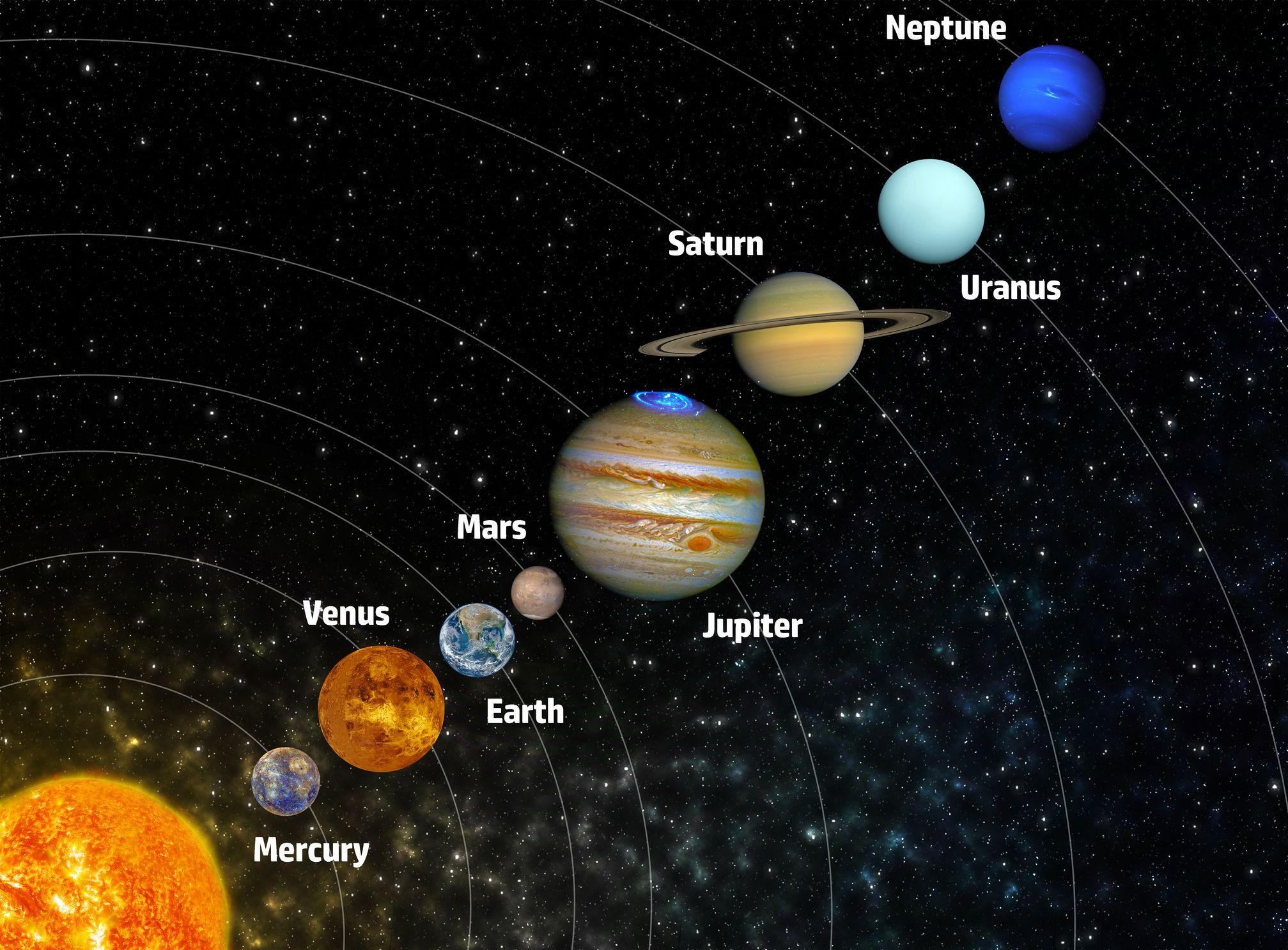
Lesson 3: Comparing planets in French
Building longer sentences that compare planets in terms of their size and temperature.

