• Pricing
  • Join
Free trialLogin
  • Art and design
  • Computing
  • Design and technology
  • French
  • Geography
  • History
  • Music
  • Religion and worldviews
  • RSE & PSHE
  • Science
  • Spanish

Start using Kapow for free

No credit card required

Free trial
Children celebrating in a school hall
  • BESA Awards 2025 Winner badge in gold.
  • ERA 2024 Winner badge with bold letters and a black-and-white illustrated face.
  • UK Digital Growth Awards 2024 Winner badge in white text on a black background.
  • ERA 2025 Finalist badge with bold letters and a black-and-white illustrated face.
  • Geographical Association Publishers’ Award 2024 Silver badge.
  • BESA Awards 2024 Finalist badge in silver.
  • Teacher Tapp Gold Recommendation Award 2024 badge with a gold trophy.
  • EdTech Impact badge for Top Teacher Knowledge Tool 2025, as rated by users.
  • Teach Primary Awards 2023 badge stating “Highly Commended.”
  • EdTech Impact Recommended badge with three blue stars, dated November 2024.
  • Circular badge stating “250 reviews on EdTech Impact.”

Sign up to our newsletter

Receive news and resources directly to your inbox.

Subjects

  • Art and design
  • Computing
  • Design and technology
  • French
  • Geography
  • History
  • Music
  • RSE & PSHE
  • Religion & worldviews
  • Science
  • Spanish
  • Archive

Company

  • Our Story
  • Blog
  • Webinars
  • Careers
  • Artsmark support
  • Contact
  • Specialists
  • FAQs
  • Accessibility
  • Sustainability
[email protected]0204 634 9025

©2026 Kapow. Website Design & Development by SoBold

  • Terms of use
  • Privacy
  • Cookies

Registered office: Staverton Court Staverton Cheltenham Gloucestershire GL51 0UX VAT: GB 337 0474 07 Company number 09640574 Postal address: PO Box 79904 London SE1 3JW

  1. Subjects
  2. Computing
  3. Key stage 2
  4. Year 5
  5. Programming 2: BBC micro:bit
  6. Lesson 4: Using the temperature sensor

Lesson 4: Using the temperature sensor

Creating and testing a program that uses the temperature sensor.
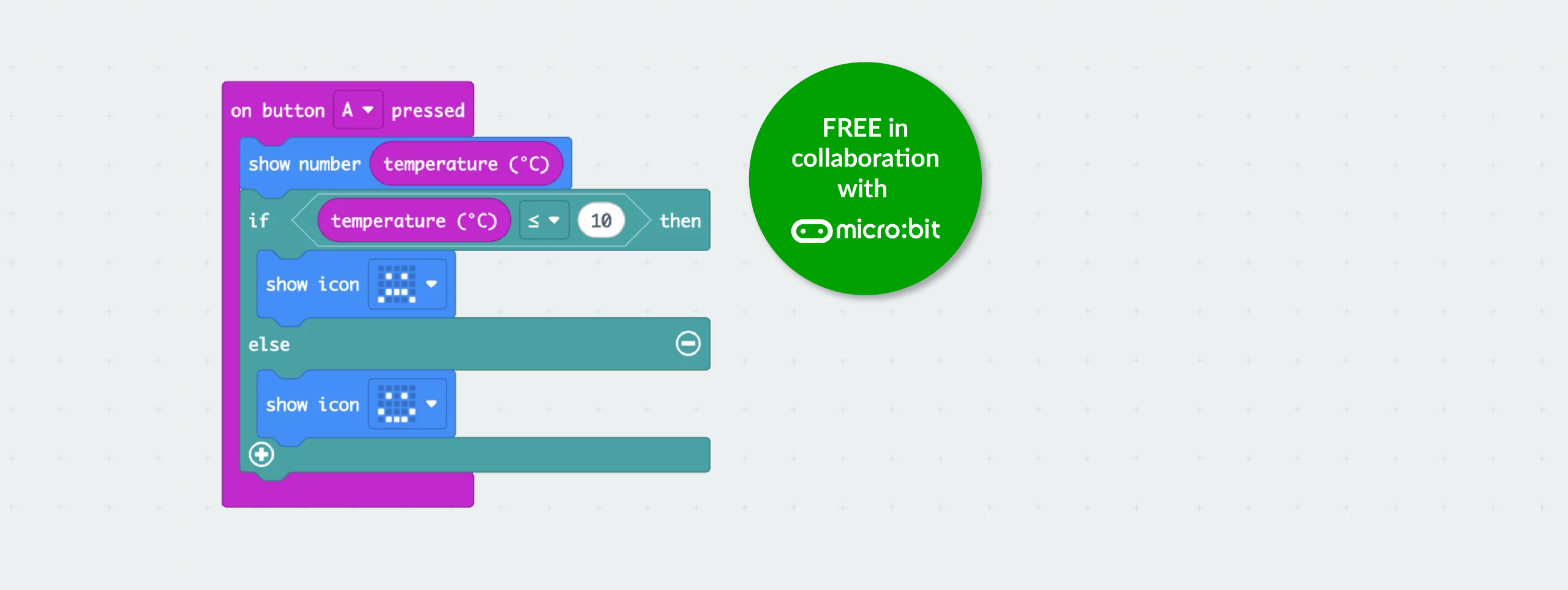
micro:bit MakeCode blocks showing temperature sensor code that displays the temperature and shows different icons when the value is below or above 10°C
Jump to:CPD video in this lesson
  • Key information
  • Before the lesson
  • Lesson plan
  • Adaptive teaching & vocabulary definitions
CPD video in this lesson

Learning objective

  • To create a real-world program using a sensor, input and a conditional statement.

Success criteria

  • I can use the temperature sensor input on a micro:bit.

  • I can use a conditional statement to make the micro:bit react to the reading.

  • I can test my program on a physical device.

Before the lesson

In collaboration with The Micro:bit Educational Foundation.

Watch

  • 1144 views

Watch

  • 1144 views

Lesson plan

Jump to:
  • Recap and recall
  • Attention grabber
  • Main event
  • Wrapping up

Explain that the children should recall what they remember about programming using MakeCode.

Display the Presentation: Speak like an expert and arrange the children into pairs. Allow time for them to share their ideas using key vocabulary.

Explain that the children should recall what they remember about programming using MakeCode.

Display the Presentation: Speak like an expert and arrange the children into pairs. Allow time for them to share their ideas using key vocabulary.

Presentation: Speak like an expert

Take feedback, highlighting any accurate use of subject-specific terms.

The children may share that:

  • The code is for a pedometer, which counts how often the micro:bit is shaken.

  • The 'on shake' input block detects movement and triggers the code.

  • The variable 'steps' stores and updates the number of steps taken.

  • A conditional statement (an 'if' block) checks if the step count has reached a specific number (e.g twenty).

  • When the condition is met, the micro:bit reacts with a celebration, such as showing an icon (e.g a smiley face) or playing a sound.

Hand out the micro:bits with the pre-loaded scoreboard program (see Teacher knowledge) and arrange the children into pairs. Alternatively, load the program onto one micro:bit and complete the quiz as a whole class, inviting volunteers to take turns.

Display the Quiz: Storm the scoreboard and explain that the children will take part in a weather quiz and the micro:bit has been programmed to function as a scoreboard. Assign one child in each pair to be Player A and the other Player B.

Quiz: Storm the scoreboard

Display the quiz questions one at a time. After each question, click to reveal the correct answer. If a player is correct, they press their assigned button to log the score (button A for Player A and button B for Player B). The first player to reach five correct answers wins.

Ask the children:

  • How do you think the micro:bit knows who has more points? (Variables keep track of the scores; button A and B add points for each player.)
  • What do you think the code looks like? (Answers may include: variables; inputs; conditional statements.)

Display the Presentation: Scoreboard code explained.

Presentation: Scoreboard code explained

Make presentation full-screen

Click to reveal and discuss the function of each block:

  • Two variables track each player's score.

  • Pressing button A increases Player A’s score and pressing button B increases Player B’s score.

  • An 'if condition' displays a message when either player reaches five points.

  • Pressing both buttons together resets both scores to zero.

Ask the children:

Take the children to the hall or playground in pairs, each with their micro:bit, whiteboard and a pen. Explain that they will test their programs by collecting temperature readings in different areas.

Ask the children to walk to locations such as a window, door, bench or piece of outdoor equipment. Explain that they will press button A (or their chosen input) to check the temperature (displayed on the LED grid) and record it on their whiteboard.

Join two pairs together once they have collected readings. Ask each group to report back like weather forecasters, using phrases such as:

  • Over by the bench, it is 22 °C.

  • By the maths display, it is 18 °C.

Ask the children:

Slide with a yawning cat under the heading Introduction.
Full-screen slides, ready for your classroom, chosen by you.
Teach in presentation mode

Success criteria

  • I can use the temperature sensor input on a micro:bit.

  • I can use a conditional statement to make the micro:bit react to the reading.

  • I can test my program on a physical device.

Was this lesson effective?

We value your feedback

We welcome your feedback to help make our resources even better
Please rate this content
1=poor  5=excellent

As a subscriber you have read and agree to our Privacy Policy

For general enquiries not relating specifically to this subject, please contact us

In this unit

  • Assessment – Computing Y5: Programming 2: *New* BBC micro:bit

    View assessment
  • Lesson 1: Tinkering with BBC micro:bit

    View lesson
  • Lesson 2: Programming an animation

    View lesson
  • Lesson 3: Programming a pedometer

    View lesson
  • Current lesson

    Lesson 4: Using the temperature sensor

  • Lesson 5: Debug and evaluate

    View lesson
Created by: Kapow Primary Team | Maintained by: Kapow team
Last update: 15 April 2026
Meet the specialists
Use presentation mode

Share lessons with your friends and colleagues for free.

  • Join
  • Free trialLogin

    Start using Kapow for free

    No credit card required

    Free trial
    Children celebrating in a school hall

    Used in 8,390 schools!